Use Your iPhone as a Voice Amplifier
Make your voice louder in classrooms, tours, meetings and events by sending it from your iPhone to a Bluetooth, AirPlay or wired speaker in real time.


iPhone: iOS 17.6 or later. Works with Bluetooth, AirPlay and wired speakers.
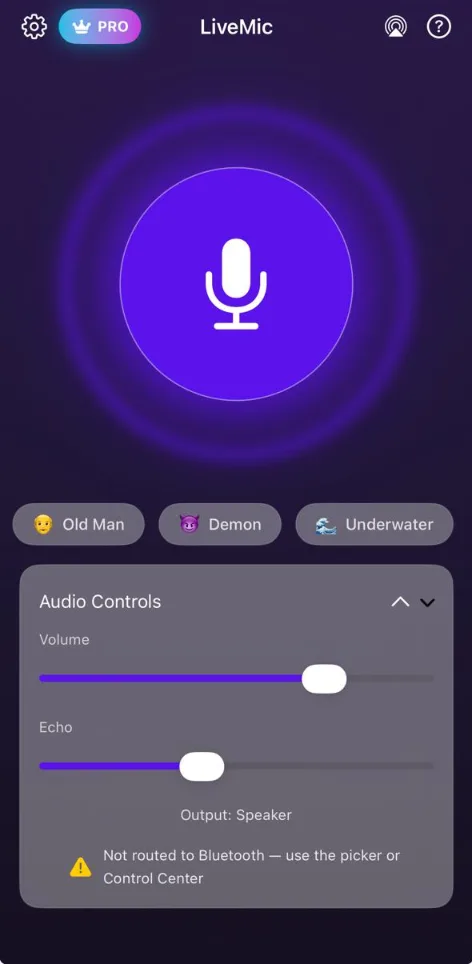
How a phone voice amplifier works
A voice amplifier picks up your voice and plays it louder through a speaker. Your iPhone already has the first half, a good built-in microphone. Add a speaker and LiveMic, and your voice plays through that speaker in real time, so a whole room or group can hear you without you raising your voice.
How loud you can get depends on the speaker. A small portable Bluetooth speaker is enough for a classroom or meeting room. A larger speaker suits a hall or outdoor group.
Who uses a voice amplifier app
- Teachers and trainers: save your voice during long days in the classroom.
- Tour guides and group leaders: keep everyone hearing you, indoors or out.
- Fitness instructors: be heard over the music.
- Presenters: make sure the back row catches every word.
- Event organizers: announcements at sports days, fairs and community events.
- Anyone with a quiet voice who wants to be heard in a group.
Set it up in four steps
- Connect your iPhone to a speaker over Bluetooth, AirPlay or a cable (iOS 17.6 or later).
- Place the speaker so it faces your listeners, not you.
- Open LiveMic, check the output shows your speaker, and set Volume low.
- Tap the mic and talk, raising the volume until the furthest listener hears you clearly.
Setups for common situations
| Situation | Speaker placement | Tip |
|---|---|---|
| Classroom | Front corner, facing the students | Speak from the opposite front corner |
| Meeting or talk | Front of the room, raised on a table | A wired connection gives the most immediate sound |
| Tour or outdoor group | Portable speaker pointed toward the group | Keep the speaker within comfortable Bluetooth range |
| Fitness class | Near the music, facing the class | Lower the music slightly before raising your voice |
Loud and clear: tips
- Keep the phone close to your mouth. The closer the mic, the less volume you need, and the less chance of feedback.
- Turn Echo down for speech. It sounds great for singing but can blur words.
- Never point the phone’s bottom edge at the speaker. That’s where the microphone is.
- Raise volume slowly. If you hear a ringing tone, back off a little.
More placement ideas: how to use your phone as a microphone for a speaker. Basics of holding the phone: how to use your phone as a microphone. Squeal or echo? Read how to fix echo when using a Bluetooth speaker. Using Bluetooth? See our Bluetooth microphone guide.
Voice amplifier FAQ
Can my iPhone amplify my voice?
Yes, with a connected speaker. LiveMic takes your voice from the iPhone’s microphone and plays it through a Bluetooth, AirPlay or wired speaker in real time.
How loud can it get?
That depends on your speaker. LiveMic’s Volume slider and the speaker’s own volume work together, so a bigger speaker gives you more volume.
Is LiveMic a hearing aid?
No. LiveMic makes your voice louder through a speaker for the people around you. It isn’t a hearing aid or a medical device.
Does LiveMic record or upload my voice?
No. Audio is processed on your iPhone and never uploaded. The app has no ads and no analytics.
Is LiveMic free?
LiveMic offers weekly and yearly subscriptions, and the weekly plan includes a 3-day free trial. Current prices for your region are shown in the App Store before you subscribe.