Turn Your iPhone Into a Karaoke Microphone
Sing through a Bluetooth, AirPlay or wired speaker with your iPhone as the mic, and add Autotune, Echo and other live voice effects.


iPhone: iOS 17.6 or later. Works with Bluetooth, AirPlay and wired speakers.
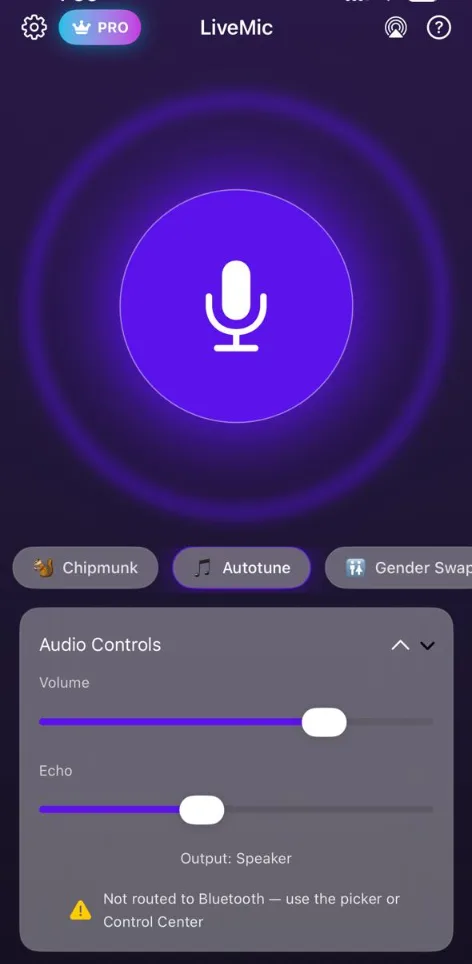
Your iPhone is already a karaoke mic
You don’t need to buy a karaoke microphone for a night of singing at home. With LiveMic, your iPhone’s built-in microphone sends your voice to a speaker in real time, and you can add effects like Autotune and Echo as you sing.
LiveMic takes care of your voice. Play the karaoke track or lyrics video from a TV, laptop or tablet as usual.
What you need
- An iPhone running iOS 17.6 or later
- A speaker: Bluetooth, AirPlay or wired
- Something to play the karaoke track, such as a TV, laptop or tablet
- The LiveMic app
Set up a karaoke night in five steps
- Connect your iPhone to the speaker over Bluetooth, AirPlay or a cable.
- Place the speaker near the TV, facing the room, so the music and your voice come from the same direction.
- Start the karaoke track on your TV or laptop.
- Open LiveMic, tap the mic and sing a line. Adjust Volume until your voice sits nicely on top of the music.
- Add a little Echo for that stage sound, or pick a voice effect.
Voice effects for karaoke
LiveMic has 12 live voice effects. For singing, these are the favorites:
- Autotune: the pop-vocal sound everyone recognizes.
- Echo: fuller, roomier vocals. There’s also an Echo slider for fine control.
- Deep and Chipmunk: for duets that get everyone laughing.
- Robot, Alien, Gender Swap and Demon: for when the party gets silly.
Tips for better karaoke sound
- Balance first. Set the music at a comfortable level, then bring your voice up with LiveMic’s Volume slider.
- Sing from the side or behind the speaker, never in front of it, to avoid feedback squeal.
- Hold the phone close and keep the distance steady, with the bottom of the iPhone toward your mouth.
- Taking turns? Pass the phone, not the speaker.
- Turn on Do Not Disturb so notifications don’t interrupt the chorus.
Troubleshooting
My voice lags behind the music
Wireless speakers add their own delay, which matters most when singing. A wired connection to the speaker usually gives the least delay. More tips: how to reduce Bluetooth microphone delay.
It squeals when I sing loudly
That’s feedback. Step back from the speaker, lower the volume slightly and don’t point the phone at the speaker. See how to fix echo and feedback.
For speaker placement in other rooms and situations, read how to use your phone as a microphone for a speaker. Using a Bluetooth speaker? See our Bluetooth microphone guide.
Karaoke microphone FAQ
Can I use my iPhone as a karaoke microphone?
Yes. LiveMic turns your iPhone into a live microphone that plays your voice through a Bluetooth, AirPlay or wired speaker, with effects like Autotune and Echo.
Where does the karaoke music come from?
LiveMic handles your voice and effects. Play the karaoke track or lyrics video from a TV, laptop or tablet, ideally with its sound near the speaker you’re singing through.
Which voice effects are included?
Robot, Deep, Echo, Alien, Radio, Chipmunk, Autotune, Gender Swap, Trickster, Old Man, Demon and Underwater.
Does LiveMic record or upload my singing?
No. Audio is processed on your iPhone and never uploaded. The app has no ads and no analytics.
Is LiveMic free?
LiveMic offers weekly and yearly subscriptions, and the weekly plan includes a 3-day free trial. Current prices for your region are shown in the App Store before you subscribe.