
Mic to speaker app for iPhone
Turn Your iPhone Into a Microphone
LiveMic turns your iPhone into a live microphone for Bluetooth, AirPlay and wired speakers. Use it for karaoke, announcements, presentations, voice amplification and more.


iPhone: iOS 17.6 or later. Try it free in your browser
- Bluetooth, AirPlay & wired
- 12 voice effects
- On-device audio
- No ads

Mic to speaker
Mic to Speaker, Made Simple
No extra microphone or mixer needed. Your iPhone picks up your voice and LiveMic sends it straight to the speaker you’re connected to.
Bluetooth speakers
Pair your Bluetooth speaker in iPhone Settings and LiveMic plays your voice through it.
AirPlay speakers
Pick an AirPlay speaker from the output picker inside the app or from Control Center.
Wired & AUX
Connect with a cable or AUX adapter for the most direct, lowest-delay connection.
Features
Everything a Live Mic Needs, Nothing It Doesn’t
Live microphone
One big mic button. Tap it and your voice plays through the speaker in real time.
Very low latency
Built so your voice comes out of the speaker as you speak, not a beat later.
Works with your speakers
Bluetooth, AirPlay and wired speakers. LiveMic shows the current output and warns you when audio isn’t routed to Bluetooth.
Simple audio controls
Adjust Volume and Echo with large sliders, and switch outputs with the built-in picker.
12 voice effects
From Autotune and Echo to Robot, Demon and Chipmunk. Switch effects with one tap.
Private by design
Audio is processed on your iPhone and never uploaded. No ads, no analytics.
Voice effects included
- Robot
- Deep
- Echo
- Alien
- Radio
- Chipmunk
- Autotune
- Gender Swap
- Trickster
- Old Man
- Demon
- Underwater
How it works
Live in Three Steps
-
Connect
Connect your iPhone to a Bluetooth, AirPlay or wired speaker.
-
Open LiveMic
Launch the app and check the output. Use the output picker to switch speakers if needed.
-
Speak
Tap the mic and talk or sing. Your voice comes out of the speaker live. Add an effect if you like.
Tip: Keep your iPhone a few steps away from the speaker to avoid feedback.

Use cases
One App, Lots of Ways to Be Heard
Parties
Toasts, games and shout-outs without passing around a wired mic.
Announcements
Make yourself heard at events, classes, sports days and meetups.
Public speaking
Speak to a room through a portable speaker with nothing but your phone.
Use your phone as a microphonePresentations
Keep your voice clear for the back row during talks and workshops.
Voice amplification
Boost your voice through a speaker when you need to be louder.
Amplify your voice with an iPhoneFun voice effects
Robot, Alien, Chipmunk, Demon and more, live through the speaker.
Bluetooth speaker mic
Turn the speaker you already own into a simple PA system.
Inside the app
Designed to Be Used Live
Large controls you can hit without looking twice, even on a dark stage.
-
Tap to go live -
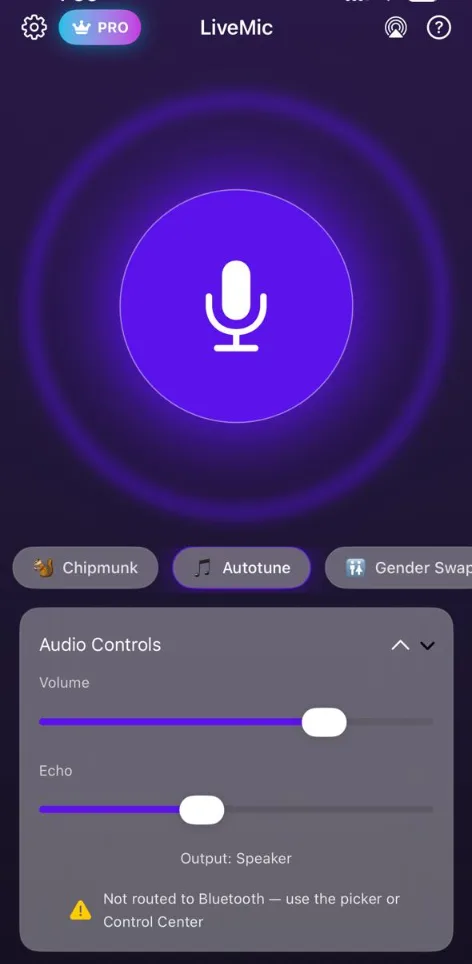
One-tap voice effects -
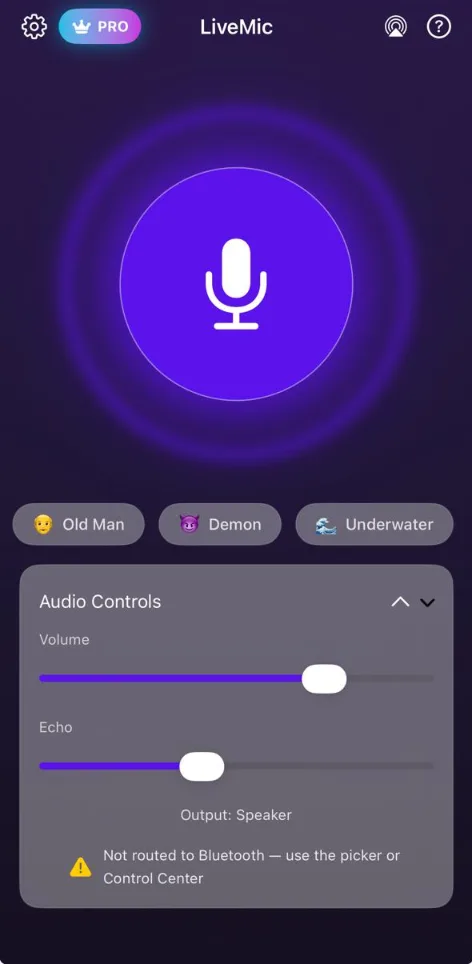
Volume, Echo & output
FAQ
Frequently Asked Questions
Can I use my iPhone as a microphone?
Yes. LiveMic turns your iPhone into a live microphone. Tap the mic button and your voice plays through the connected speaker in real time. LiveMic requires iOS 17.6 or later.
Can I connect LiveMic to a Bluetooth speaker?
Yes. Pair your speaker in iPhone Settings → Bluetooth, then open LiveMic. The app shows which output your voice is going to and warns you if audio is not routed to Bluetooth. You can switch outputs with the built-in output picker or from Control Center.
Does LiveMic work with AirPlay and wired speakers?
Yes. Besides Bluetooth, LiveMic works with AirPlay speakers and with wired speakers connected by cable or AUX adapter.
Can I use LiveMic for karaoke?
Yes. Connect your iPhone to a speaker, sing into the phone, and use the Volume and Echo controls or effects like Autotune to shape your sound.
Does LiveMic have voice effects?
Yes. LiveMic includes 12 voice effects: Robot, Deep, Echo, Alien, Radio, Chipmunk, Autotune, Gender Swap, Trickster, Old Man, Demon, Underwater.
Is there any delay?
LiveMic is built for very low latency. Wired connections usually have the least delay. Wireless speakers add some delay of their own, which varies by speaker and connection type.
How do I stop feedback or squealing?
Keep your iPhone away from the speaker and avoid pointing the microphone at it. Lowering the volume or the Echo slider also helps.
Does LiveMic upload my voice?
No. All audio is processed on your iPhone and is never uploaded. LiveMic has no ads and no analytics.
Is LiveMic free?
LiveMic is free to download. Pro features are available with a weekly or yearly subscription, and the weekly plan includes a 3-day free trial. Current prices for your region are shown in the App Store before you subscribe.
Is LiveMic available on Android?
Yes. LiveMic is also available on Google Play.
Ready to turn your phone into a microphone?
Download LiveMic and go live through your speaker in seconds. The weekly plan starts with a 3-day free trial.