How to Use Your Phone as a Microphone
Your iPhone has a capable built-in microphone. Here’s how to use it as a live mic through a speaker, how to hold it for clear sound, and how to avoid feedback.


iPhone: iOS 17.6 or later. Works with Bluetooth, AirPlay and wired speakers.
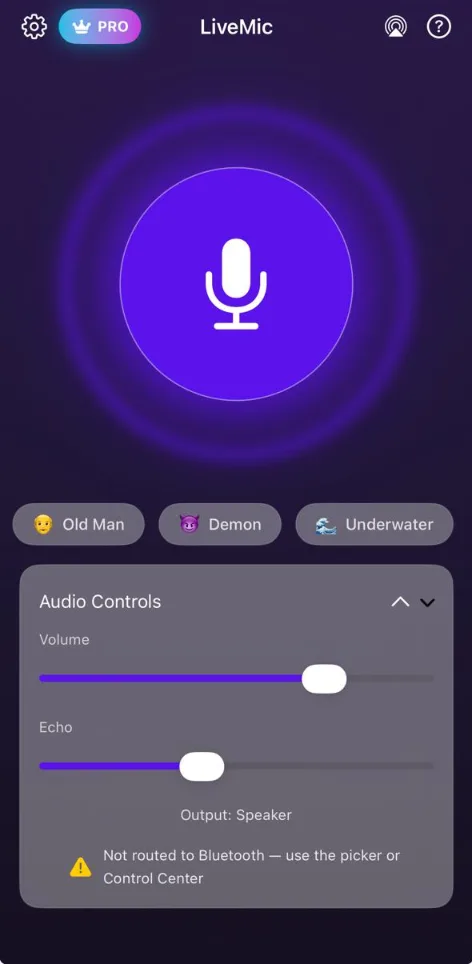
Short answer: install a live microphone app such as LiveMic, connect your iPhone to a Bluetooth, AirPlay or wired speaker, tap the mic button and speak. Your voice plays through the speaker in real time.
Three ways a phone can be a microphone
“Using your phone as a microphone” can mean different things, so it helps to know which one you need:
- Live mic through a speaker: you speak and people hear you through a speaker right away. This is what LiveMic does, and what this guide covers.
- Recording: capturing audio to listen to later. The iPhone’s built-in Voice Memos app handles this.
- A microphone for a computer: sending your voice into video calls or recording software on a PC or Mac. That needs dedicated computer software and is a different job from a live mic.
How to use your iPhone as a live microphone
- Connect a speaker. Pair a Bluetooth speaker in Settings → Bluetooth, pick an AirPlay speaker on your Wi-Fi, or plug into a speaker’s AUX input with an adapter.
- Open LiveMic. Check the output indicator to confirm your voice is going to the speaker. If not, choose the speaker with the output picker.
- Start low. Set Volume low before you start, then raise it gradually.
- Tap the mic and speak. Add Echo or a voice effect if you want.
Want to dig into connection types? See how mic-to-speaker works or our walkthrough on using your phone as a microphone for a speaker.
How to hold your phone for clear sound
- Find the microphone. The iPhone’s main microphone is on the bottom edge, next to the charging port. Speak toward that end of the phone.
- Keep a consistent distance. Hold the bottom of the phone a few centimeters (about an inch or two) from your mouth, and keep it there so your volume stays even.
- Speak across it, not straight into it. Angling the phone slightly reduces popping sounds from “p” and “b”.
- Don’t cover the mic. Fingers or a thick case over the bottom edge muffle your voice.
Avoid feedback
Feedback, the loud squeal you’ve heard at events, happens when the microphone picks up its own sound from the speaker. To prevent it:
- Stand a few steps away from the speaker, ideally behind or beside it rather than in front of it.
- Never point the bottom of your phone at the speaker.
- Turn the volume down a little, and lower the Echo slider, which can make feedback more likely.
Still hearing a squeal or a doubled voice? Read how to fix echo when using a Bluetooth speaker.
Before you go live
- Turn on Do Not Disturb (or a Focus mode) so notification sounds don’t play through the speaker mid-speech.
- Charge up. Keep your iPhone and speaker charged for long events.
- Do a sound check. Say a few sentences from where you’ll stand and adjust volume before your audience arrives.
Phone vs. a dedicated microphone
For home karaoke, parties, classrooms, meetings and small events, an iPhone with a good speaker is simple and convenient: no extra gear, nothing to charge except what you already carry. For large venues or professional stage work, a dedicated microphone and PA system still makes sense. Use the tool that fits the room.
FAQ
Can I use my phone as a microphone?
Yes. With a live microphone app like LiveMic, your iPhone’s built-in mic sends your voice to a connected speaker in real time.
Which speakers work with LiveMic?
LiveMic works with Bluetooth speakers, AirPlay speakers and wired speakers connected by cable or AUX adapter.
Where is the microphone on an iPhone?
The main microphone is on the bottom edge of the iPhone, next to the charging port. Speak toward that end for the clearest sound.
Can I change how my voice sounds?
Yes. LiveMic includes 12 voice effects: Robot, Deep, Echo, Alien, Radio, Chipmunk, Autotune, Gender Swap, Trickster, Old Man, Demon and Underwater.